How to Setup NFS server on CentOS server.
As a technology enthusiast with a passion for efficient operations, I specialize in Linux, AWS Cloud, Prometheus-Grafana, Security, Virtualization, and Git. With a deep understanding of these technologies, I am able to streamline development processes and ensure smooth operations for businesses.
What is the NFS server.
In this tutorial, we will learn how to set up an NFS server on CentOS. NFS (Network File Sharing) is a protocol used to share files and directories with other Linux users. An NFS share is mounted on a client machine. NFS service uses port Number 2049
For creating an NFS server on the client machine we have to install the nfs-utils tool on the server as well as on the client machine also for installing the nfs-utils tool on the server use
1. Server-side configuration.
Step 1: First, install the nfs utility, by installing nfs-utils on your Centos server.
# yum install nfs-utils

Step 2: After installation, we have to start and enable nfs-server.service
#systemctl start nfs-server.service
#systemctl enable nfs-server.service

Step 3: Now, if you are using a firewall on the server, allow nfs, mountd, rpc-bind and after adding services to the firewall, reload the firewall service.
#firewall-cmd --permanent --add-service=nfs

# firewall-cmd --permanent --add-service=rpc-bind

# firewall-cmd --permanent --add-service=mountd

# firewall-cmd --reload

After making these changes in firewall configuration you can check the configuration by using the following command.
# firewall-cmd --list-all
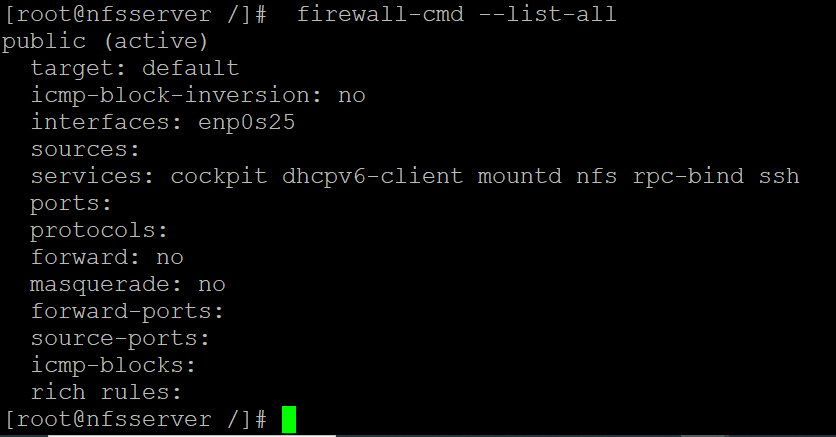
Step 4: Now select the directory that you want to share with the client machine, in this case, I have created the local_backup directory under the /mnt path.
# mkdir -p /mnt/local_backup

Step 5: Now, make the changes in the permission and ownership directory /mnt/local_backup and nobody is the service account here you can check its User & Group ID which is nobody here.
# chown nobody: /mnt/local_backup
# chmod -R 777 /mnt/local_backup
#nls -ld /mnt/local_backup

From the below command, you can see this is a service account.
# cat /etc/passwd | grep nobody

# chmod -R 777 /mnt/local_backup
# systemctl restart nfs-utils

Now add the configuration in /etc/exports using vim utility
# vim /etc/exports
Add the following content to the file
[root@nfsserver local_backup]# vim /etc/exports [root@nfsserver local_backup]# cat /etc/exports /mnt/local_backup/IT 192.168.1.228/24(rw,sync,no_all_squash,root_squash)

Now verify and share with the following command.
#exportfs -avr

2. Client-side configuration
Step 6: First of all install nfs-utils & nfs4-acl packages on the client machine.
# yum install nfs-utils nfs4-acl-tools -y
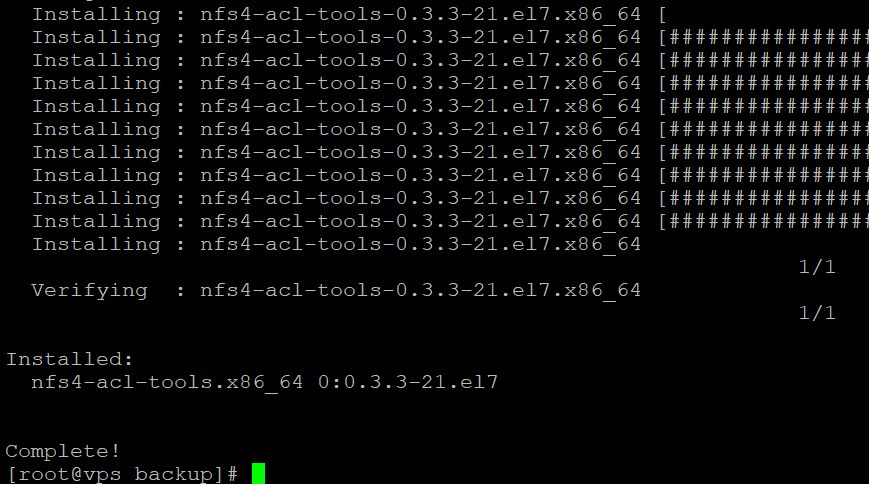
Now, check the shared directory over the network.
# showmount -e 192.168.1.228

Here this IP is the server IP.
Step 7: For Permanent mounting please make an entry in the/etc/fstab file in the client machine and with created a directory under /mnt in the name of local_backup to mount it.
# 192.168.1.228:/mnt/local_backup /mnt/local_backup nfs nosuid,rw,sync,hard,intr 0 0
# mkdir -p /mnt/local_backuf
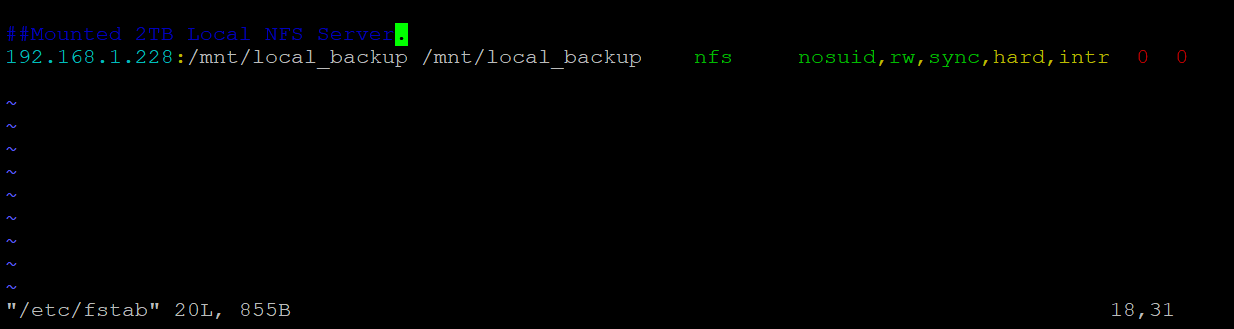
Now execute this command to mount it on /mnt/local_backup path.
# mount -t nfs -o sync 192.168.1.228:/mnt/local_backup/IT
or
# mount -t nfs -o sync 192.168.1.228:/mnt/local_backup/IT /mnt/local_backup
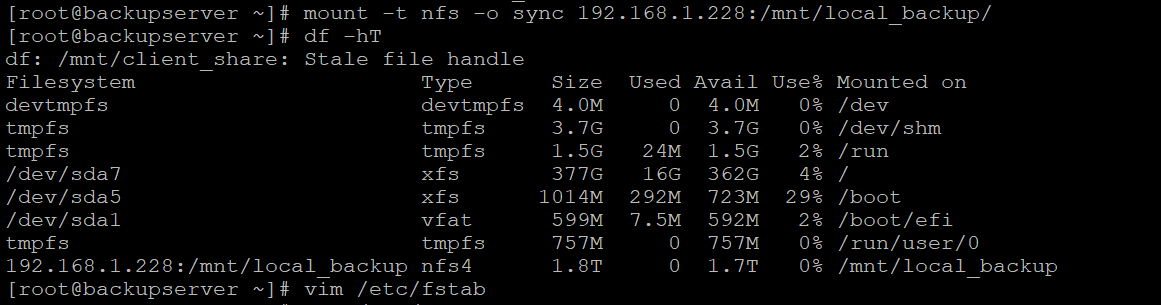
test.txt file created under client machine.
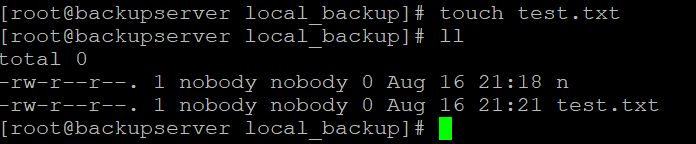
The next test.txt file is visible under the nfs_server machine.

All done.
And this is how you have learned in this tutorial how to set up NFS server on a CentOS server.
Thank you
Anil Kushwaha